

Claude Artifacts let you turn a prompt into a standalone document, presentation, dashboard, diagram, website or interactive tool. Instead of leaving the result buried in a chat, Claude opens it in a separate workspace where you can refine and reuse it.
You can start by asking Claude to create something specific, such as a project brief or calculator. For more structured work, use the available Artifact templates. The steps below show how to create your first Artifact, build three practical examples, improve the output and share your finished work.
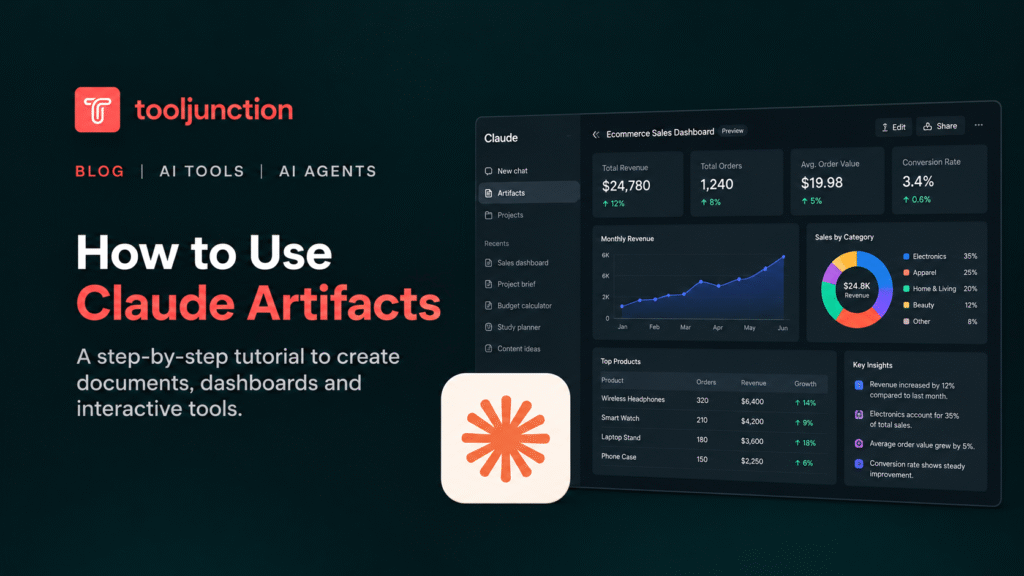
Table of Contents
What Are Claude Artifacts?
Claude Artifacts are self-contained outputs that appear beside your conversation. They are designed for content you may want to edit, revisit or share rather than read once and discard.
Common uses include:
- Documents: Project briefs, reports, study notes and structured plans.
- Dashboards: Charts and visual summaries of business or other data.
- Interactive tools: Calculators, quizzes, flashcards and simple web applications.
- Designs and presentations: Visual concepts, slides and layouts.
- Diagrams: Flowcharts and other visual explanations.
Unlike a normal chat response, an Artifact gives you a separate output to refine. You can ask Claude to change its layout, add functionality or correct specific sections without starting from scratch.
How to Create Your First Claude Artifact
Follow these steps to get started.
- Open Claude and sign in.
- Check that Code execution and file creation is enabled under Settings > Capabilities. On Team and Enterprise plans, an administrator may need to enable it in the organization's settings.
- Start a conversation and describe the output you want.
- Specify the intended audience, required sections, format and any important constraints.
- Review the generated Artifact in its separate panel.
- Ask Claude to revise it until the result meets your requirements.
You can also open the Artifacts tab and choose an available template. Docs, Slides and Design templates are available across plans. Dashboard templates are currently in beta and require a paid plan.
If Claude returns a regular chat response instead, explicitly ask it to create the requested output as an Artifact.
1. Create a Document With Claude Artifacts
A document is a useful first project because you can evaluate its structure, accuracy and readability without needing to build an application.
Suppose you need a project brief for a small marketing campaign. Instead of asking Claude to write a generic brief, provide the information it needs and define the structure.
Copy-ready prompt:
Create a project brief as a Claude Artifact for a four-week marketing campaign promoting a new productivity app.
Include the campaign objective, target audience, key message, content channels, weekly milestones, responsibilities, success metrics and risks.
Present the milestones in a table. Keep the language clear and practical, and mark any missing information as an assumption rather than inventing facts.
Once the Artifact appears, check whether the milestones are realistic and the metrics match the campaign objective.
You can then refine it with a follow-up prompt:
Add a section explaining how we will measure campaign performance. Include the metric, how it will be calculated, and when it should be reviewed. Keep the existing structure and flag any assumptions.
What to check: Confirm that the brief contains every requested section, the table is readable and the proposed metrics are measurable. Treat invented dates, budgets or targets as assumptions until you verify them.
2. Build a Dashboard With Claude Artifacts
Dashboards can help you explore data and present important figures in one place. However, the dashboard workflow has additional access requirements.
Claude's Dashboards template is currently in beta on Pro, Max, Team and Enterprise plans. Enterprise administrators may need to enable it. Dashboard creation can also use connected data sources, so the available workflow depends on your account and setup.
For a beginner project, start with a small sample dataset rather than connecting sensitive business information.
Copy-ready prompt:
Create a dashboard Artifact for a fictional online store using sample monthly sales data.
Include total revenue, number of orders, average order value and monthly revenue trends. Add a chart showing sales by product category and a short explanation of the main findings.
Label all figures as sample data. Make the dashboard easy to read and explain how each metric is calculated.
Review the figures before relying on the dashboard. Total revenue should match the source records, and average order value should use the correct order count. Check chart labels, date ranges and whether missing values have been handled appropriately.
For connected data, ask Claude to show the query or calculation behind each chart where the feature supports it. This makes it easier to investigate incorrect totals or filters.
For a deeper comparison of tools suited to this work, see ToolJunction's guide to the best AI data analysis tools.
3. Create an Interactive Tool
Artifacts can also produce small applications that respond to user input. Examples include study quizzes, budget calculators, flashcards and simple planning tools.
A calculator is a good starting point because its expected behavior is easy to check.
Copy-ready prompt:
Build an interactive monthly budget calculator as a Claude Artifact.
Let users enter monthly income, rent, utilities, groceries, transport and other expenses. Calculate total expenses and remaining income automatically.
Include a reset button, clear input labels, currency formatting and a warning if expenses exceed income. Make the layout simple and usable on a mobile screen.
After Claude creates the tool, test it with several inputs:
- Enter ordinary positive values and confirm the total.
- Change one expense and check whether the remaining income updates.
- Enter zero for an expense.
- Test empty fields and invalid values.
- Enter expenses greater than income and confirm that the warning appears.
- Use the reset button and check whether the inputs return to their initial state.
If something fails, describe the specific problem rather than asking Claude to improve the tool generally.
For example:
The remaining-income figure does not update when I change the grocery expense. Fix the calculation and test it with income of 3,000 and total expenses of 2,400. The remaining income should be 600.
The example values are test inputs, not evidence that the generated tool has been tested. Verify the actual result in the Artifact before using or sharing it.
How to Edit, Share and Export Claude Artifacts
You do not need to get every detail right in your first prompt. Iteration is a central part of working with Artifacts.
Edit an existing Artifact
Use follow-up instructions that identify what should change and what should remain untouched.
For example:
- “Make the headings consistent and shorten the introduction.”
- “Add a filter for product category without removing the existing charts.”
- “Improve the mobile layout and make the buttons easier to read.”
- “Explain the calculation behind this metric.”
After each change, check that Claude has not removed existing functionality or altered unrelated content.
Share or export your work
Sharing options depend on where the Artifact was created and which Claude experience and plan you use. Open the Artifact's sharing controls and review the available options before sending a link.
Some workflows support sharing with specific people or groups, while others offer a link that can be opened by anyone who has it. Certain older chat Artifacts also support publishing. Do not assume that every Artifact has the same export or publishing options.
For more information, consult Anthropic's official guide to creating, using and sharing Artifacts.
Before sharing, remove private information, check the access settings and test the link from the perspective of its intended audience. If you need a presentation rather than an interactive output, compare the available options in ToolJunction's guide to the best AI presentation tools.
Are Claude Artifacts Free?
Claude Artifacts are available on Free, Pro, Max, Team and Enterprise plans, subject to the applicable feature requirements and usage limits.
| Capability | Availability |
|---|---|
| Create Artifacts in chat | Available across listed plans |
| Docs, Slides and Design templates | Available across listed plans |
| Dashboards template | Beta on Pro, Max, Team and Enterprise |
| Connect apps to an Artifact | Paid plans, subject to feature availability |
| Store data in an Artifact | Paid plans, subject to feature availability |
Features can change, and organization administrators may control which capabilities are enabled. Check the current plan documentation before upgrading specifically for a feature.
Limitations and Common Problems
Claude Artifacts are useful for creating drafts and prototypes, but a generated output still needs review.
Artifacts are not always generated automatically. If Claude answers in the conversation, explicitly request a standalone Artifact.
Some features require additional access. Check code execution, file creation, templates and organization settings before troubleshooting the prompt.
Generated calculations can be wrong. Verify totals, formulas, data filters and assumptions against the source information.
Interactive tools need functional testing. Check buttons, inputs, error handling and different screen sizes. A polished interface does not guarantee that the underlying logic works.
Sharing permissions vary. Confirm who can open the Artifact and whether recipients need a Claude account. Avoid placing confidential information in an Artifact intended for public sharing.
Artifacts are not automatically production-ready software. A prototype may need code review, accessibility checks, security testing and further development before it can support real users or sensitive workflows.
FAQs
What are Claude Artifacts used for?
Claude Artifacts create reusable outputs such as documents, presentations, diagrams, dashboards, websites and interactive tools in a separate workspace beside the conversation.
How do I activate Claude Artifacts?
Enable Code execution and file creation in Settings > Capabilities, where required. If you use a managed Team or Enterprise account, check whether your administrator controls the setting.
Can I use Claude Artifacts for free?
Yes. Creating Artifacts in chat and using Docs, Slides and Design templates are available on the Free plan. Dashboard templates and some connected-app capabilities require paid plans.
Can I share a Claude Artifact with other people?
Yes, where sharing is supported. The available options depend on the Artifact's creation workflow and your plan. Check the sharing dialog and access permissions before distributing it.
Final Thoughts
Claude Artifacts are most useful when you need an output that can be edited, reused or interacted with, rather than a response that stays in the chat. Start with a document, move to a dashboard if you have data to explore, or build a small interactive tool when users need to enter information and see a result.
The practical workflow is straightforward: describe the intended output, review the first version, request specific changes and verify the result before sharing. That final check matters most when the Artifact contains calculations, connected data or interactive functionality.


