

Your first video can take far longer to edit than to record. You may spend an hour trimming pauses, adding captions, fixing noisy audio, and resizing clips for social media, only to discover that the editor you chose makes simple tasks harder than they should be.
AI video editing tools can reduce that work, but they aren't all built for the same job. Some help you edit footage on a timeline, others let you cut videos by editing a transcript, and a few focus on generating or transforming footage with AI.
This guide compares seven options you'll find what each tool does best, which AI features are useful for beginners, what to check before paying, and which option makes sense for your first project.
Table of Contents
Quick comparison: Which AI video editor should you choose?
| Tool | Best for | Main advantage | What to watch |
|---|---|---|---|
| Movavi Video Editor | General desktop editing | Familiar timeline and AI-assisted cleanup | Paid software and desktop installation |
| Riverside | Podcasts and interviews | Recording, transcripts, and clips together | Plan limits and spoken-content focus |
| Descript | Tutorials and talking-head videos | Edit video by editing text | Media hours and AI credits |
| Flixier | Browser-based editing | Editing without installing desktop software | Export limits and free-plan watermark |
| CapCut | Reels, Shorts, and TikTok-style videos | Templates, captions, and quick social edits | Paid features and regional pricing |
| Runway | AI-generated or transformed footage | Generative video tools | Credit consumption and learning what each model does |
| VEED | Online videos with captions | Browser editing and AI-assisted cleanup | Free-export watermark and AI limits |
If none of these options fits your workflow, compare more tools in our AI video editor's directory.
Here are 7 AI Video Editing Tools
1. Movavi Video Editor
Best for: Beginners who want a conventional desktop editor with AI-assisted tools.
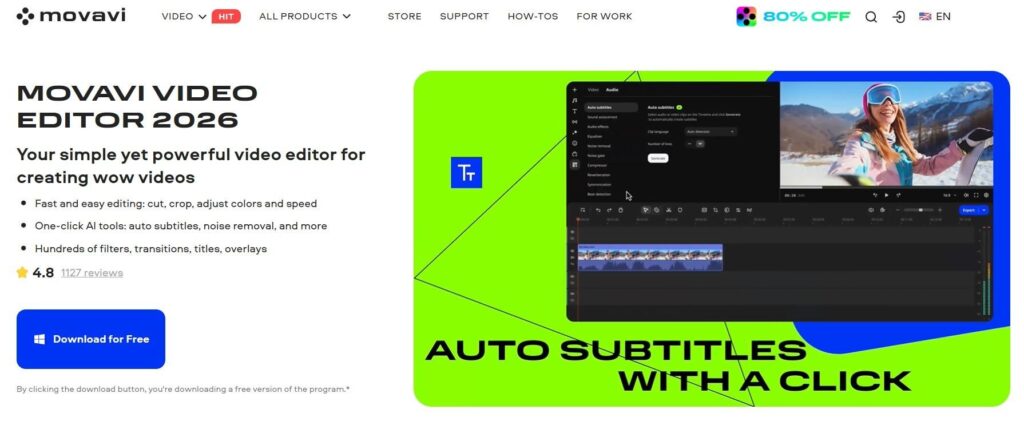
Movavi uses a timeline for trimming clips, arranging scenes, adding titles, adjusting speed, and improving audio. Its AI features help with tasks such as background removal, noise reduction, subtitles, and reframing footage for different formats.
Pros
- Familiar timeline-based editing workflow.
- Useful tools for cleaning up audio and preparing clips.
- Templates, effects, and titles for everyday projects.
Cons
- Requires desktop installation.
- The free trial is not the same as a permanently free editor.
- License terms and renewal costs need checking before purchase.
AI features: Depending on the current version and license, these can include automatic subtitles, background removal, noise reduction, motion tracking, and automatic cropping.
How to try it: Start with the official trial and edit a short video using your own footage. Check the export restrictions and subscription terms before committing.
Pricing: Movavi advertises a seven-day trial that renews at $19.95 per month unless cancelled. Other license options and promotional prices may differ.
2. Riverside
Best for: Beginners making podcasts, interviews, webinars, and talking-head videos.
Riverside combines recording, transcription, and editing. Its workflow is particularly useful when a long conversation needs to become a polished recording and several short clips. Instead of moving between separate recording and editing apps, you can handle much of the process in one place.
Pros
- Recording and editing are closely connected.
- Transcripts help locate useful sections of a conversation.
- Magic Clips can help identify moments for short-form content.
Cons
- Less suitable for projects built around complex visual effects.
- Some capabilities depend on the subscription plan.
- Recording and transcription limits matter if you produce content frequently.
AI features: Magic Clips, transcription, audio enhancement, and AI-assisted show notes are among the capabilities to check against the current plan.
How to try it: Record a short interview or import a conversation, then create one short clip with captions. Check export quality and usage limits before using it for a regular publishing schedule.
Pricing: A free plan is available. Confirm the current paid-plan price, recording limits, and feature availability on the official Riverside pricing page.
3. Descript
Best for: Tutorials, explainers, screen recordings, and videos driven by speech.
Descript turns spoken audio into a transcript that you can edit. Delete a sentence from the text, and the corresponding section of the recording is removed. This can be easier for beginners than searching through a timeline to find every pause or repeated phrase.
Pros
- Text-based editing is convenient for spoken content.
- Useful tools for filler-word removal and audio cleanup.
- Supports recording, captions, and clip creation.
Cons
- AI features consume credits, depending on the task and plan.
- Media-hour allowances can limit larger projects.
- Transcript editing is less helpful for footage where visual timing matters more than speech.
AI features: Underlord, Studio Sound, filler-word removal, clip creation, and AI speech tools are among its current capabilities.
How to try it: Import a five-minute tutorial, correct the transcript, remove a few unwanted sections, and export the result. This will show whether text-based editing fits your workflow.
Pricing: Descript has a free plan with limits. Its official pricing page lists Hobbyist at $16 per person per month with annual billing, or $24 month-to-month. Check the included media hours, AI credits, and export resolution before choosing a plan.
4. Flixier
Best for: Beginners who prefer editing in a browser rather than installing desktop software.
Flixier offers browser-based timeline editing alongside AI-assisted tools for subtitles, voiceovers, translation, and transcript-based editing. It can be convenient if you use different computers or don't want to set up a full desktop editing suite.
Pros
- Runs in a browser.
- Combines conventional editing with AI features.
- Useful for captions, voiceovers, and straightforward online projects.
Cons
- Export minutes, storage, and AI credits vary by plan.
- The free plan includes a watermark.
- Large projects depend on a reliable browser and internet connection.
AI features: Depending on the plan, these can include AI-assisted editing, text-to-speech, subtitles, translation, and video generation within the editing workflow.
How to try it: Make a short social video in the browser and export it. Check the output resolution and watermark before deciding whether the free plan is enough.
Pricing: Flixier's free plan includes 10 minutes of video export per month, five minutes of subtitles, 720p output, 2 GB of storage, and a watermark. Its current pricing page lists Starter at $9 per seat per month when billed yearly.
5. CapCut
Best for: Beginners creating Reels, YouTube Shorts, and TikTok-style videos.
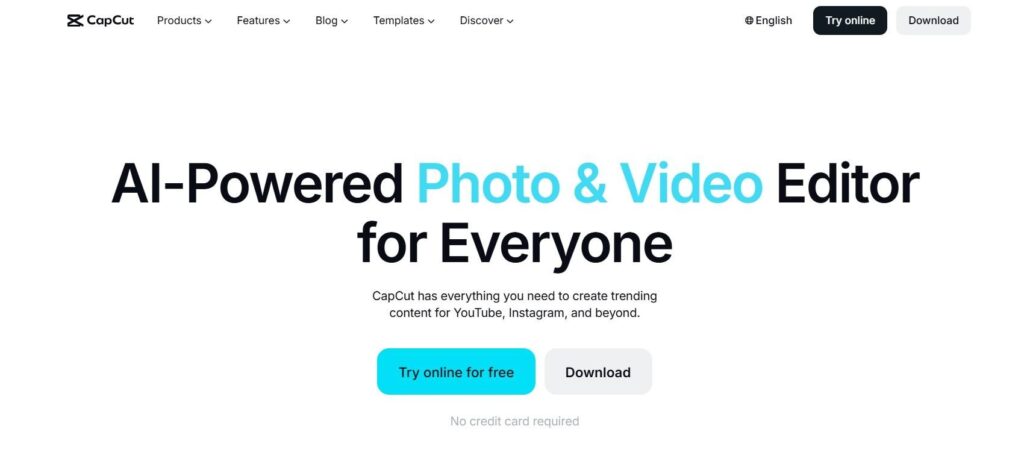
CapCut is designed for quick, visually engaging edits. Templates, captions, transitions, effects, music, and social-friendly formats make it easier to turn raw footage into a finished short without building every element from scratch.
Pros
- Good fit for short-form social content.
- Large collection of templates and effects.
- Available across supported mobile and desktop workflows.
Cons
- The interface can feel busy when many effects and options are displayed.
- Some AI features and premium assets require a paid plan.
- Prices and feature availability may vary by region or platform.
AI features: Auto captions, background removal, motion tracking, and AI-assisted creative tools are worth exploring, but availability depends on the current version and plan.
How to try it: Start with a 30-second vertical video. Add captions, trim unnecessary pauses, and export it in the format required by your chosen platform.
Pricing: CapCut offers a free plan and a Pro subscription. Its official pricing page currently displays Pro at $19.99 per month in the referenced USD pricing view. Treat that as indicative, not a guaranteed price for every country or account. If CapCut's pricing or feature restrictions don't suit your workflow, explore our guide to CapCut alternatives.
6. Runway
Best for: Beginners who want to generate or transform video footage with AI.
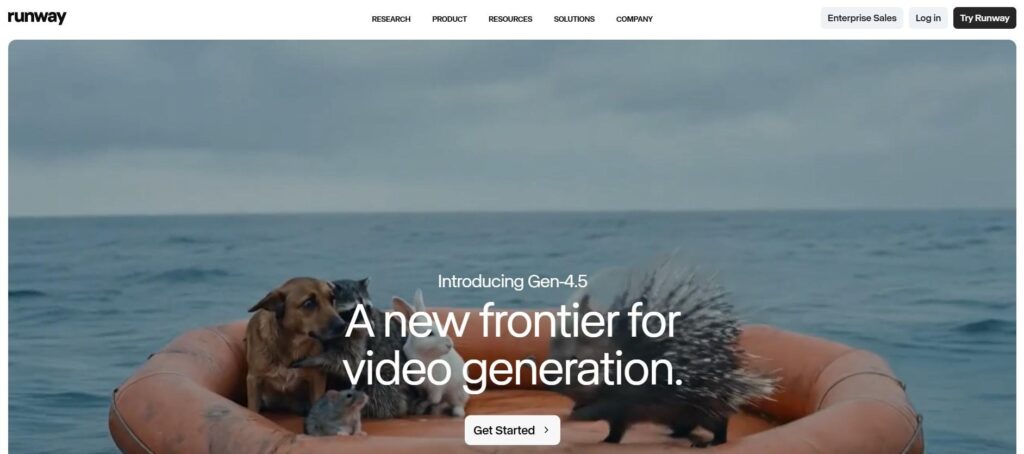
Runway is different from a conventional video editor. Its main strength is generative video: creating clips from prompts or images and transforming existing footage with AI models. It is useful for experimenting with visual concepts, creating supporting shots, or producing footage that would be difficult to capture.
Pros
- Access to generative video and image tools.
- Useful for creative experiments and AI-generated scenes.
- Can complement a conventional editor when you need additional footage.
Cons
- Generations consume credits, and complex experimentation can use them quickly.
- Model access depends on the plan.
- It is not the most direct choice for beginners who only need to trim, caption, and assemble recorded clips.
AI features: Runway's current platform includes video-generation models, video transformation, image tools, and audio-generation capabilities. The available models and credit costs can change.
How to try it: Generate a short supporting shot, inspect the result, and see whether it can be used in your project. Check how many credits the model consumes before planning a larger video.
Pricing: Runway offers a free plan with 125 one-time credits. Standard is listed at $12 per month with annual billing. The free plan does not provide unlimited generation, so check the current model-specific credit costs.
7. VEED
Best for: Beginners who want to edit videos online, especially tutorials and business content with captions.
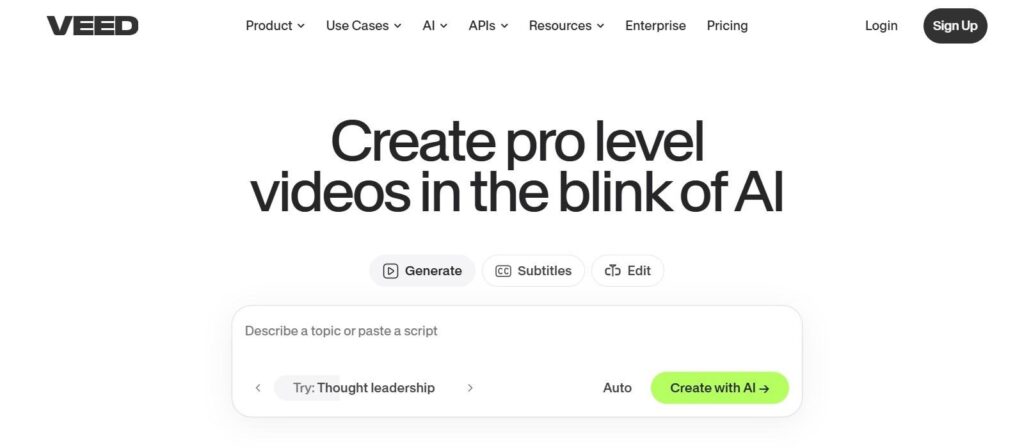
VEED combines browser-based editing with subtitles, transcript-related tools, audio cleanup, and AI-assisted features. It suits people who want to make a clear, publishable video without installing a desktop application.
Pros
- Easy to start editing in a browser.
- Useful captioning and subtitle tools.
- Suitable for straightforward tutorials, explainers, and business videos.
Cons
- Free exports include a watermark.
- Some AI tools are available only as limited trials or on paid plans.
- Translation allowances and AI credits can affect frequent use.
AI features: Depending on the plan, VEED offers Auto Edits, AI B-roll, audio cleanup, text-to-video tools, and other AI-assisted editing features.
How to try it: Upload a short clip, add subtitles, make a few edits, and export a sample. Check the watermark and resolution before using it for client or business work.
Pricing: VEED offers a free plan with restrictions. Its official page lists plans starting at $9 per month with annual billing or $19 month-to-month, with prices and features subject to change.
Which AI video editor is right for a beginner?
The right choice depends on the video you want to make, not the number of AI features in a product description.
- For general desktop editing: Start with Movavi.
- For podcasts and interviews: Consider Riverside.
- For tutorials and speech-heavy videos: Try Descript.
- For browser-based editing: Compare Flixier and VEED.
- For social media clips: Start with CapCut.
- For AI-generated footage: Explore Runway.
Before paying, make one short video with your preferred tool. Check whether you can complete the edit without repeatedly searching for basic controls, and test the exported file for watermarks, resolution, captions, and audio quality. Also check whether the free plan gives you enough usage for your actual publishing schedule.
AI should reduce repetitive work, not make the editing process harder to understand. A tool that handles your everyday workflow at a price you can sustain is usually a better starting point than one with the longest AI feature list.


