

You don't need a $200/month cloud AI subscription. You need a $7 VPS and 30 minutes.
The self-hosted AI movement has gone mainstream. What used to require a GPU cluster and a PhD now runs on a single VPS with Docker Compose. In 2026, you can run your own ChatGPT-like interface, serve local LLMs, and automate AI workflows without sending a single byte of data to anyone else's servers.
This guide walks you through the exact stack: Ollama for running models locally, Open WebUI for the chat interface, and n8n for AI-powered workflow automation. All self hosted. All free. All yours.
Why Self-Host Your AI Tools?
Every time you send a prompt to ChatGPT, Claude, or Gemini, your data hits someone else's server. For personal projects, that's fine. For business data, client information, or proprietary code? That's a risk most people don't think about until it's too late.
Self-hosting your AI stack gives you three things that cloud services can't:
Data sovereignty. Your prompts, documents, and conversations never leave your network. No third-party logging, no training on your data, no surprises in the terms of service.
Zero recurring costs. Once your server is running, you're done. No per-token pricing, no execution limits, no "you've hit your free tier" popups. Run as many queries as your hardware can handle.
Full control. Pick your models. Tune your parameters. Build custom workflows. Swap components whenever something better shows up. No vendor lock-in, no feature gates, no waiting for someone else's roadmap.
The Stack: What Each Tool Does
Before we get into setup, here's how the three pieces fit together:
| Tool | Role | Replaces |
|---|---|---|
| Ollama | Local LLM inference server | OpenAI API, Anthropic API |
| Open WebUI | Chat interface with RAG, voice, and vision | ChatGPT, Perplexity |
| n8n | AI workflow automation | Zapier + AI plugins, Make |
Ollama is the engine. It downloads, manages, and serves open-weight language models through a simple API. Open WebUI is the dashboard. It gives you a polished ChatGPT-style interface that connects to Ollama (or any OpenAI-compatible API). n8n is the glue. It connects your AI models to 400+ apps and services through visual workflows.
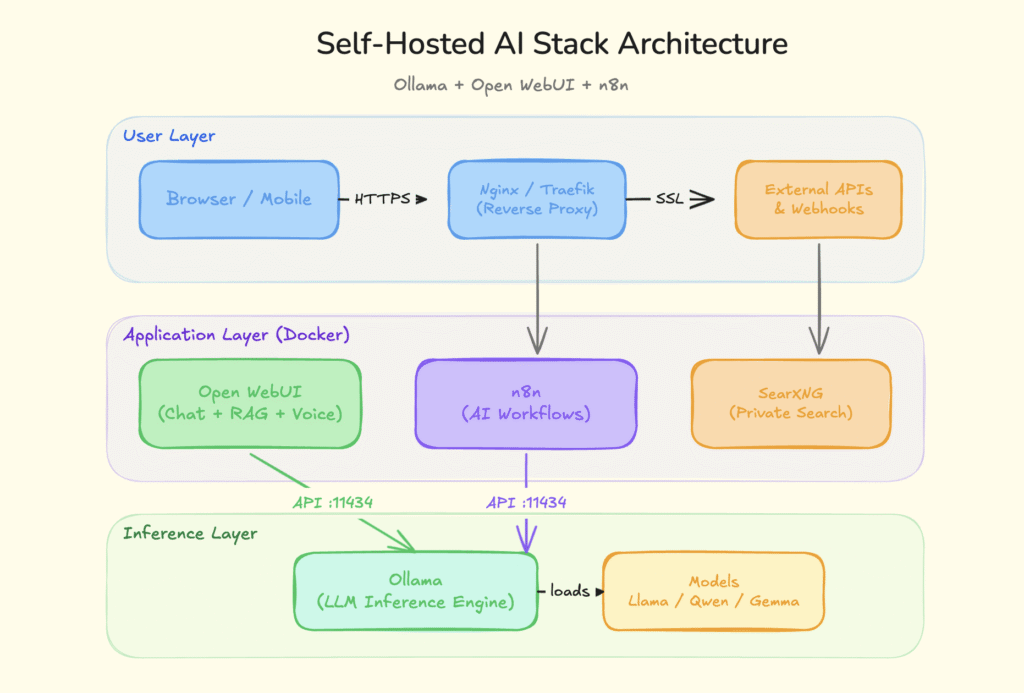
Together, they form a complete self hosted AI platform that rivals what you'd get from paying $200+/month across multiple SaaS subscriptions.
Step 1: Choose Your Hardware
You don't need a monster rig. Here's what actually works:
Budget option (good for small models): Any VPS with 4+ GB RAM and 2 vCPUs. Providers like Hetzner, DigitalOcean, or Contabo offer this for $5 to $10/month. You'll run smaller models like Gemma 3 1B or Phi-4 Mini comfortably.
Recommended setup (covers most use cases): A VPS or home server with 8 to 16 GB RAM and 4 vCPUs. This handles 7B to 8B parameter models like Llama 3.3 8B and Qwen 2.5 7B at usable speeds. If you're already running a Hetzner box for other projects, this is the sweet spot.
Power user (GPU inference): A dedicated GPU server or a local machine with an NVIDIA RTX 3060+ (12 GB VRAM) or Apple Silicon with 16 GB+ unified memory. This unlocks 14B to 27B parameter models that rival GPT-4 quality on many tasks.
For most indie developers and small teams, the 8 GB VPS option is the right starting point. You can always scale up later.
Step 2: Install Ollama
Ollama is a one-liner install on Linux:
curl -fsSL https://ollama.com/install.sh | sh
Verify it's running:
ollama --version
Now pull your first model. For a good balance of quality and speed on modest hardware:
# Lightweight, runs on 4 GB RAM
ollama pull gemma3:1b

# Best all-rounder for 8 GB+ RAM
ollama pull llama3.3:8b

# Strong reasoning and coding
ollama pull qwen2.5:7b

# If you have 16 GB+ RAM and want near-GPT-4 quality
ollama pull qwen2.5:14b
Ollama serves an API on http://localhost:11434 by default. That's all Open WebUI and n8n need to connect.
Pro tip: If you're running Ollama on a VPS and want other services in Docker to access it, you'll need to set OLLAMA_HOST=0.0.0.0 in your environment. But never expose port 11434 to the public internet without authentication. Keep it behind your firewall or reverse proxy.
Step 3: Deploy Open WebUI
Open WebUI turns Ollama into a full ChatGPT alternative with a clean web interface. One Docker command gets you running:
docker run -d \
  -p 3000:8080 \
  --add-host=host.docker.internal:host-gateway \
  -v open-webui:/app/backend/data \
  --name open-webui \
  --restart always \
  ghcr.io/open-webui/open-webui:main
Open http://your-server-ip:3000 in your browser. Create an admin account on first launch.
What You Get Out of the Box
Open WebUI has grown into a serious platform. It's not just a chat wrapper anymore. Here's what ships by default:
- RAG (Retrieval-Augmented Generation). Upload PDFs, Word docs, or text files and chat with them directly. Open WebUI builds a local knowledge base from your documents, so your models can answer questions grounded in real data instead of hallucinating.
- Web search integration. Connect a search engine (SearXNG is the self-hosted favorite) and your local models can pull live information from the web. This bridges the biggest gap between local and cloud AI.
- Voice input and output. Built-in speech-to-text (via Whisper) and text-to-speech support. You can talk to your self-hosted AI just like you would with ChatGPT's voice mode.
- Multi-model support. Run Llama, Qwen, Gemma, DeepSeek, and Mistral side by side. Compare outputs in the same window. Switch between models mid-conversation.
- Code execution. A built-in Python interpreter (pyodide) lets your AI write and run code right in the chat. Useful for data analysis, quick scripts, and prototyping.
- User management. RBAC (role-based access control), SSO support, and audit logs. This matters when you're running it for a team, not just yourself.
Connecting Open WebUI to Cloud APIs (Optional)
The beauty of Open WebUI is that it's provider-agnostic. You can connect it to Ollama for local models AND to OpenAI, Anthropic, or any OpenAI-compatible API at the same time. This gives you a hybrid setup: use local models for everyday tasks (free, private) and cloud models for the occasional heavy-lifting query.
Go to Settings > Connections in Open WebUI to add your API keys.
Step 4: Set Up n8n for AI Workflow Automation
This is where the stack goes from "cool personal tool" to "actual productivity multiplier."
n8n is a self-hosted workflow automation platform. Think Zapier, but you own it, there are no per-execution fees, and it has native AI nodes that connect directly to your Ollama models.
Deploy n8n with Docker Compose
Create a docker-compose.yml:
version: '3.8'
services:
  n8n:
    image: n8nio/n8n:latest
    restart: always
    ports:
      - "5678:5678"
    environment:
      - N8N_HOST=localhost
      - N8N_PORT=5678
      - N8N_PROTOCOL=http
    volumes:
      - n8n_data:/home/node/.local/share/n8n
    extra_hosts:
      - "host.docker.internal:host-gateway"

volumes:
  n8n_data:
docker compose up -d
Now, open http://your-server-ip:5678 and create your account.
Connect n8n to Ollama
In n8n, add Ollama credentials:
- Go to Credentials > New Credential > Ollama
- Set the base URL to
http://host.docker.internal:11434 - Select your model (e.g., llama3.3)
- Save and test the connection
AI Workflow Ideas That Actually Save Time
Here are real workflows you can build in 30 minutes or less:
- Email triage. Trigger on new email > send content to Ollama > classify as urgent/normal/spam > route to the right folder or send a Slack notification. Saves 20+ minutes of inbox sorting every day.
- Content summarizer. Watch an RSS feed or Slack channel > extract new posts > summarize with your local LLM > post the summary to a Notion database or Discord channel. Great for staying on top of industry news without reading everything.
- Document Q&A bot. Upload company docs to Open WebUI's knowledge base > create an n8n webhook that receives questions via API > query the knowledge base > return answers. Your own internal ChatGPT trained on your docs.
- Code review assistant. Trigger on new GitHub PR > fetch the diff > send to Ollama for review > post comments on the PR. Works surprisingly well with Qwen 2.5 Coder models.
- Lead qualification. Webhook receives form submission > Ollama analyzes the message > scores and categorizes the lead > creates a task in your project management tool. No Zapier subscription required.
The Complete Docker Compose Stack
Want everything in one file? Here's the full stack:
version: '3.8'

services:
  ollama:
    image: ollama/ollama:latest
    restart: always
    ports:
      - "11434:11434"
    volumes:
      - ollama_data:/root/.ollama
    # Uncomment for NVIDIA GPU support:
    # deploy:
    #   resources:
    #     reservations:
    #       devices:
    #         - driver: nvidia
    #           count: all
    #           capabilities: [gpu]

  open-webui:
    image: ghcr.io/open-webui/open-webui:main
    restart: always
    ports:
      - "3000:8080"
    environment:
      - OLLAMA_BASE_URL=http://ollama:11434
    volumes:
      - open_webui_data:/app/backend/data
    depends_on:
      - ollama

  n8n:
    image: n8nio/n8n:latest
    restart: always
    ports:
      - "5678:5678"
    environment:
      - N8N_HOST=localhost
      - N8N_PORT=5678
      - N8N_PROTOCOL=http
    volumes:
      - n8n_data:/home/node/.local/share/n8n
    depends_on:
      - ollama

volumes:
  ollama_data:
  open_webui_data:
  n8n_data:
Save this as docker-compose.yml, run docker compose up -d, and your entire self-hosted AI stack is live.
After startup, pull a model into Ollama:
docker exec -it ollama ollama pull llama3.3:8b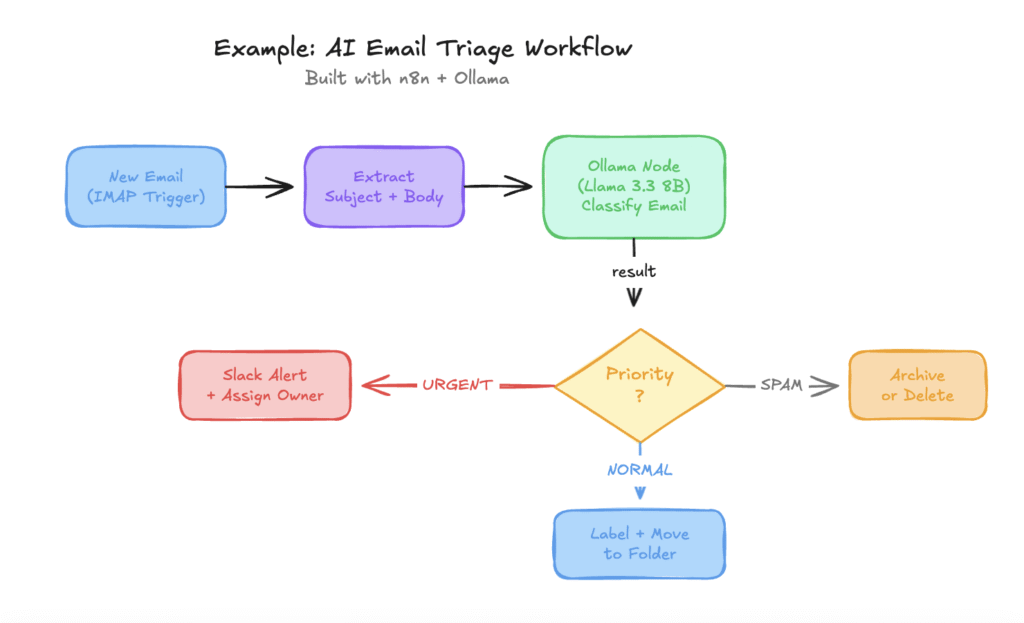
Example of AI Email Triage workflow
Which Models Should You Run?
The model landscape moves fast. Here's a practical cheat sheet for April 2026:
| Model | Size | RAM Needed | Best For |
|---|---|---|---|
| Gemma 3 1B | 1.6 GB | 4 GB | Quick tasks, edge devices |
| Llama 3.3 8B | 4.7 GB | 8 GB | General purpose, good all-rounder |
| Qwen 2.5 7B | 4.4 GB | 8 GB | Multilingual, strong reasoning |
| Phi-4 14B | 9 GB | 16 GB | Math, logic, structured reasoning |
| Qwen 2.5 Coder 14B | 9 GB | 16 GB | Code generation, code review |
| DeepSeek R1 | varies | 16 GB+ | Deep reasoning, chain-of-thought |
| Qwen 3.5 27B | 17 GB | 24 GB+ | Near-GPT-4 quality, the current king |
Start with Llama 3.3 8B. It's the default for a reason: fast, capable, and runs on almost anything. Upgrade to Qwen 2.5 14B or Qwen 3.5 27B when you need better output quality and have the RAM to support it.
Securing Your Stack
Running AI tools on a public server means you need basic security hygiene:
Use a reverse proxy. Put Nginx or Traefik in front of everything. Get free SSL certificates from Let's Encrypt. Never expose raw ports to the internet.
Lock down Ollama. By default, Ollama has no authentication. Keep it bound to localhost or your Docker network. Don't expose port 11434 publicly.
Enable authentication everywhere. Open WebUI has built-in user management. n8n has its own auth. Use strong passwords and enable 2FA where available.
Keep things updated. All three projects ship frequent updates. Set a reminder to pull new images monthly:
docker compose pull
docker compose up -d
Firewall rules. Only expose ports 80/443 (via your reverse proxy) to the world. Everything else stays internal.
What This Stack Costs
Let's compare:
| Setup | Monthly Cost |
|---|---|
| ChatGPT Pro + Zapier Pro + API usage | $90 to $200+ |
| Self-hosted (Hetzner CPX21, 4 GB) | ~$7 |
| Self-hosted (Hetzner CPX31, 8 GB) | ~$13 |
| Self-hosted (home server, already owned) | $0 (electricity only) |
The self-hosted stack eliminates per-token pricing, per-execution fees, and monthly subscription costs. Your only recurring expense is the server itself.
When Self-Hosting Isn't the Right Call
Let's be honest about the tradeoffs:
You need frontier-model quality for everything. GPT-4o, Claude Opus, and Gemini Ultra are still ahead of local models on the hardest tasks. If your work requires consistently top-tier reasoning across complex, multi-step problems, cloud APIs are still worth it for those specific queries.
You don't want to maintain infrastructure. Self-hosting means you're the sysadmin. Updates, backups, monitoring, and debugging are your responsibility. If that sounds like a chore rather than a feature, managed solutions exist for every tool in this stack.
You need real-time collaboration at scale. For large teams (50+ people) with complex access control requirements, enterprise SaaS products have battle-tested features that take significant effort to replicate with self-hosted tools.
The sweet spot? Run self-hosted for 90% of your AI usage (drafting, summarizing, coding, automating) and keep a cloud API key for the 10% that actually needs frontier models.
What to Do Next
- Spin up the stack. Copy the Docker Compose file above and deploy it on a $7 VPS. The whole process takes under 30 minutes.
- Pull a model. Start with Llama 3.3 8B. Run a few conversations in Open WebUI to get a feel for local AI quality.
- Build one n8n workflow. Pick the most repetitive task in your day and automate it. Email triage is a great first win.
- Explore the ecosystem. The selfh.st/apps directory tracks hundreds of self-hosted tools. Browse it for companion apps that extend your stack: SearXNG for private search, Paperless-ngx for document management, Immich for photo backup.
The self-hosted AI ecosystem in 2026 is mature, accessible, and genuinely useful. You don't need to be a sysadmin to run it. You just need Docker, a cheap server, and 30 minutes.
Your data. Your models. Your rules.
Looking for more self-hosted tools and AI resources? Check out ToolJunction for a curated directory of the best AI tools and open-source software.


